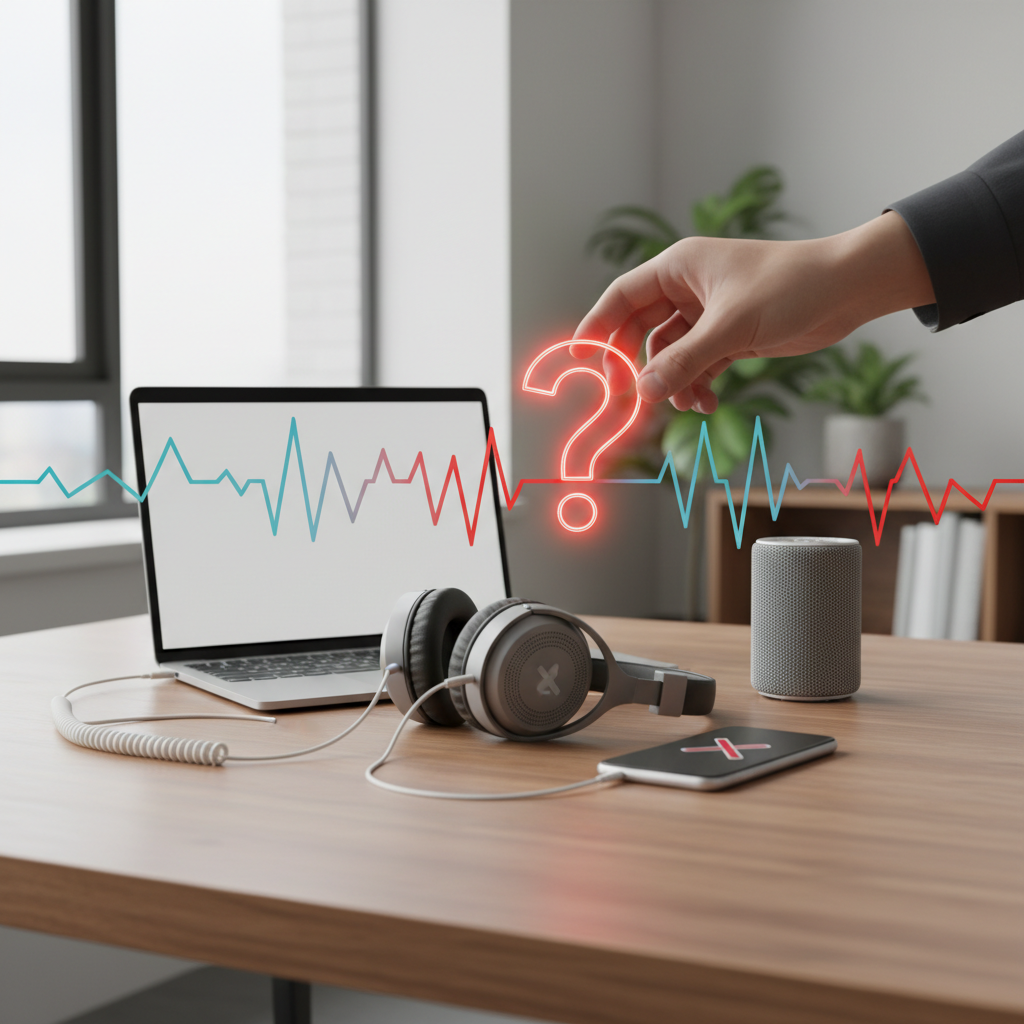
Has your device’s volume suddenly dropped to zero or muted itself without you touching anything? This is a surprisingly common frustration across phones, computers, headphones, and Bluetooth speakers. Understanding why it happens is the first step toward stopping it for good.
Auto muting can occur on virtually any audio device or operating system. Whether you’re mid-call, listening to music, or watching a video, the interruption is annoying and often confusing. The good news is that most causes are software-based and fixable without any technical expertise.
Quick Answer
If your volume keeps auto muting, the most common fix is to disable automatic audio adjustments in your device’s sound or accessibility settings. On Windows, turn off “Loudness Equalization” and communication audio ducking. On Android or iPhone, disable volume limit features and Do Not Disturb automations. Most cases are resolved within a few minutes.
Key Takeaways
- Auto muting is usually caused by software settings, not hardware failure
- Windows has a built-in feature that lowers volume during calls, which is a frequent culprit
- iPhones and Android devices have volume protection and automation features that can trigger muting
- Bluetooth devices may auto mute due to inactivity timers or power-saving modes
- Third-party apps, especially communication tools, can override system volume settings
- A quick settings audit on your specific device will resolve the issue in most cases
Why Does Volume Keep Auto Muting?
Auto muting happens when a device or app interprets a signal or condition that triggers a volume reduction or silence command. This can be intentional design (like hearing protection on iPhones) or a misconfigured setting (like Windows reducing volume during calls).
Common triggers include:
- Operating system communication settings
- Hearing protection or volume limit features
- App-level audio management (Zoom, Teams, Spotify)
- Bluetooth power-saving or inactivity timeout modes
- Do Not Disturb or Focus mode automations
- Conflicting audio drivers
How to Fix Auto Muting on Windows
Check Communication Audio Settings
Windows has a setting specifically designed to reduce other sounds when it detects phone calls or communication activity. This is a top cause of unexpected volume drops.
- Right-click the speaker icon in your taskbar
- Select “Sounds” then navigate to the “Communications” tab
- Set the option to “Do nothing”
- Click Apply and OK
This single change resolves auto muting for many Windows users, especially those using voice or video call apps.
Disable Audio Enhancements
Corrupted or conflicting audio enhancements can also cause erratic volume behavior.
- Go to Settings > System > Sound
- Click your playback device, then “Device properties”
- Select “Additional device properties”
- Under the “Enhancements” tab, check “Disable all enhancements”
Update or Roll Back Audio Drivers
Outdated or Visit your device manufacturer’s website to download the correct driver version, or use Device Manager to roll back to a previous driver.
How to Fix Auto Muting on iPhone
Turn Off Volume Limit
Apple’s built-in hearing protection can cap or mute audio without warning.
- Go to Settings > Sounds & Haptics
- Tap “Headphone Safety”
- Disable “Reduce Loud Sounds”
Check Do Not Disturb and Focus Modes
Scheduled Focus modes can suppress audio at specific times. Go to Settings > Focus and review any active automations that might be silencing sound.
How to Fix Auto Muting on Android
Android devices vary by manufacturer, but the core steps are similar.
- Go to Settings > Sound and look for “Volume limit” or “Media volume limiter” and disable it
- Check “Do Not Disturb” rules under Settings > Notifications > Do Not Disturb
- Review any scheduled routines in Samsung’s “Modes and Routines” or similar features on other brands
Some Android devices also have a feature that lowers volume after prolonged listening. This is often labeled as “Adapt Sound” or “Sound assistant” and can be turned off in sound settings.
How to Fix Auto Muting on Bluetooth Headphones or Speakers
Bluetooth audio devices often have their own auto mute or power-saving behavior. If your Bluetooth speaker or headphones keep going silent, consider the following:
- Inactivity auto-off: Many devices mute or power down after a set period of silence. Check your device’s companion app for timeout settings.
- Low battery behavior: Some headphones reduce or cut audio when battery drops below a threshold.
- Connection drops: Brief Bluetooth disconnections can cause momentary muting. Try moving your source device closer or removing interference sources.
If you’re using ANC headphones, note that [active noise audio signals in unexpected ways, though this is rare.
When Third-Party Apps Are the Culprit
Apps like Zoom, Microsoft Teams, Discord, and even Spotify can take control of your system volume. Signs that an app is causing the issue:
- Volume only drops when a specific app is open
- Muting occurs at the start or end of calls
- The volume slider moves on its own
Fix: Check the app’s audio settings and disable any options related to automatic volume adjustment, noise suppression, or audio ducking. In Windows, you can also check which apps have audio access via Settings > Privacy > Microphone.
For remote work setups, this is especially worth reviewing. The [Jabra Evolve2 55](https://www.diecastaudio.com/jabra- and similar professional headsets often come with companion software that manages audio levels independently of your OS.
Quick Comparison: Common Auto Mute Causes by Device
| Device | Most Likely Cause | Where to Fix |
|---|---|---|
| Windows PC | Communication audio ducking | Sound > Communications tab |
| iPhone | Headphone Safety / Focus mode | Settings > Sounds & Haptics |
| Android | Volume limiter or DND rules | Settings > Sound |
| Bluetooth headphones | Inactivity timeout | Companion app or device settings |
| Mac | App-level audio control | System Preferences > Sound |
Conclusion
If your volume keeps auto muting, the fix is almost always found in your device’s sound or accessibility settings. Start with the communication audio settings on Windows, the headphone safety settings on iPhone, or the volume limiter on Android. For Bluetooth devices, check the companion app for power-saving or timeout options.
Most users resolve this issue in under five minutes once they know where to look. No hardware repair needed.
FAQs
Why does my volume mute itself randomly?
Random auto muting is usually caused by a software setting, scheduled automation, or an app taking temporary control of your audio. Check your OS sound settings and any active Focus or Do Not Disturb modes first.
Why does my PC volume go down during calls?
Windows has a built-in feature that automatically lowers system volume when it detects communication activity. You can disable this under the Communications tab in your Sound settings.
Why does my iPhone keep muting itself?
iPhones can mute audio due to the Headphone Safety feature, active Focus modes, or scheduled Do Not Disturb rules. Check Settings > Sounds & Haptics and Settings > Focus to identify the cause.
Can a Bluetooth headphone auto mute on its own?
Yes. Many Bluetooth headphones and speakers include inactivity timers or power-saving modes that mute or shut off audio after a period of silence. This setting is usually adjustable in the device’s companion app.
Does auto muting mean my speakers or headphones are broken?
In most cases, no. Auto muting is almost always a software or settings issue rather than a hardware failure. If the problem persists after adjusting all relevant settings, try testing with a different device to rule out a hardware fault.